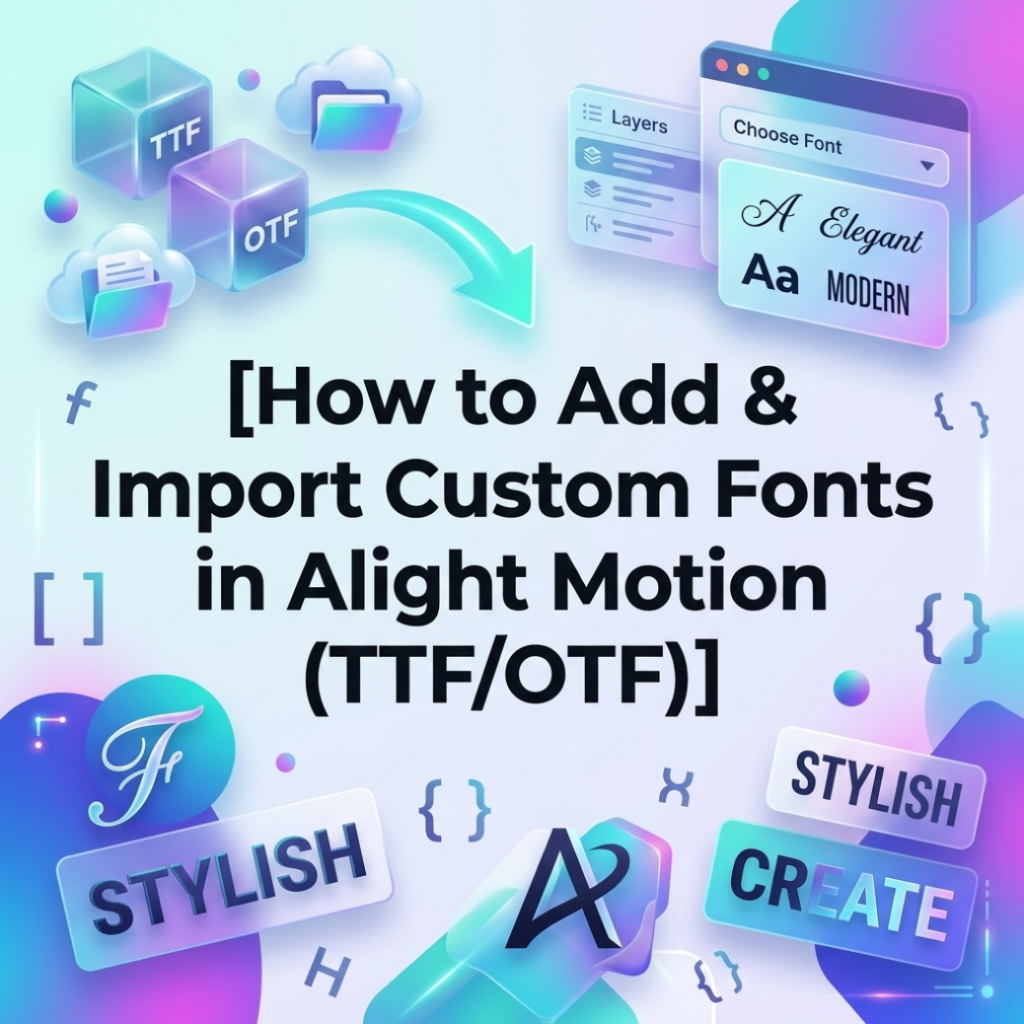
How to Add & Import Custom Fonts in Alight Motion (TTF/OTF)
How to Add & Import Custom Fonts in Alight Motion (TTF/OTF),,Typography can make or break a motion graphics project. While Alight Motion provides a solid built-in library of stock text styles, relying entirely on them can make your typography look generic. To truly elevate your kinetic typography, AM edits, or complex graphic designs, learning how to expand your toolkit is essential.
Whether you are using an Android device or an iOS platform, importing external file types gives you complete creative control over your visual aesthetic. This comprehensive, SEO-optimized guide walks you through the exact process of downloading, preparing, and importing custom TTF (TrueType Font) and OTF (OpenType Font) files directly into your editing application.
How to Add & Import Custom Fonts in Alight Motion (TTF/OTF)
Before jumping into the step-by-step instructions, it is helpful to understand the formats you will be using. Both formats are fully compatible with Alight Motion, but they have subtle differences:
- TTF (TrueType Font): Developed by Apple and Microsoft in the late 1980s. It uses a single file to hold both screen and printer versions of a typeface. They are highly compatible, lightweight, and render reliably on almost any mobile processor.
- OTF (OpenType Font): The modern evolution of TTF, built by Adobe and Microsoft. OTF files can map thousands of additional characters, including alternate glyphs, decorative ligatures, and flourishes.
The Verdict for Mobile Editors: How to Add & Import Custom Fonts in Alight Motion (TTF/OTF) If you are working on complex typography edits that require unique character alternates or specialized symbols, prioritize OTF. If you are looking for simple, clean text layouts with maximum performance stability, TTF is your best bet.
Step 1: Where to Find and Download Custom Fonts Safely
To get started, you need to acquire your typography assets. Always source your files from reputable web repositories to avoid malware or broken files. Some of the most popular, trusted platforms include: How to Add & Import Custom Fonts in Alight Motion (TTF/OTF)
- Google Fonts: Excellent for clean, open-source, commercially safe serif and sans-serif typefaces.
- DaFont: The gold standard for stylized aesthetic choices, cursive handwriting scripts, and specialized display options.
- FontSpace: A curated directory hosting thousands of free options categorized by specific themes.
When downloading, ensure you select the direct download option. The platform will deliver your files packed inside a compressed folder format.
Step 2: Unzipping and Preparing Font Files on Mobile
Alight Motion cannot read compressed files directly. If your download arrives wrapped inside a .zip archive, you must extract the raw data components before attempting to access them within the editor interface.
On Android Devices
- Launch your default Files or File Manager app.
- Navigate directly to your Downloads directory.
- Locate the downloaded archive (e.g.,
vintage_font.zip). - Tap on the archive file and select Extract or Unzip.
- Verify that you can see a loose
.ttfor.otffile sitting within the freshly generated target folder.
On iOS (iPhone/iPad)
- Open the native Apple Files App.
- Head into your local storage or your cloud-linked Downloads directory.
- Locate the compressed file asset.
- Simply tap once directly on the
.zipitem. The system architecture will instantly unpack the contents into a standard folder container right next to it.
Step 3: How to Import Custom Fonts in Alight Motion (Step-by-Step)
With your raw files unpacked, you are ready to bring them into the app. The execution layout is identical across both operating platforms.
1.Create or Open a Project:1 min.
Launch the Alight Motion application on your mobile device. Create a brand-new timeline using the green Plus (+) icon, or launch an existing project template from your dashboard.
2.Initialize the Text Layer:1 min.
Tap the Plus (+) button located in the bottom right quadrant of your active composition window. Select the Text element option, type out your placeholder phrase, and tap the font drop-down menu situated along the top editing taskbar.
3.Access the Global Directory:1 min.
Once the text sub-menu rolls downward, select the View All Fonts prompt. This action expands the core system typography manager.
4.Trigger the Import Protocol:2 min.
Tap the three horizontal parallel lines (burger menu) icon positioned in the upper left corner of your manager screen. From the slide-out contextual menu, select Import Fonts.
5.Target and Load Your Files:2 min.
The application will launch your device’s native file picker. Browse to the specific unzipped storage destination from Step 2, highlight your target .ttf or .otf file assets, and confirm the selection.
Once imported successfully, your newly added styles will appear directly inside the Imported category filter within the primary selector interface.
Troubleshooting Common Alight Motion Font Errors
Even experienced video editors hit snags when trying to configure custom assets. Here is how to diagnose and resolve the most common issues:
1. “Unsupported File Format” Error
- Cause: You attempted to import the raw
.ziparchive instead of extracting it first, or the file extension contains an unsupported variation. - Fix: Double-check your file extension. Ensure it ends strictly in lowercase
.ttfor.otf. Run the file through an online converter tool if it is saved under an older format variant.
2. Fonts Don’t Show Up in the List
- Cause: The application cache has hung up, or you accidentally stored the file in a cloud directory that requires active internet authentication.
- Fix: Ensure your font assets are stored locally on your device storage rather than an un-synced cloud drive. If it still fails to appear, force-close Alight Motion from your multi-tasking screen and relaunch the app to refresh the system index.
3. Text Characters Clipping or Invisible
- Cause: This happens when an OTF file contains complex, non-standard code structures that overwhelm the mobile rendering layer.
- Fix: Convert the problematic file type down to standard TrueType format (
.ttf) using a free file transformation tool, then re-import the clean version.
Summary Table: Quick Reference Cheatsheet
| Operational Phase | Required Action | Critical Format Constraint |
| Asset Sourcing | Download from safe directories | Only download trusted archives |
| Preparation | Extract files using local storage tool | Discard raw .zip containers |
| Integration | Tap View All Fonts > Import Fonts | Select raw .ttf or .otf assets |
| Application | Filter list by checking the Imported tag | Works instantly across text elements |
Pro Typography Tips for Alight Motion Editors
- Organize with Favorites: Avoid scrolling endlessly through hundreds of styles. Tap the small star icon right next to your imported typefaces inside the manager to add them to your favorites tray for instant access.
- Mind Your Shadows: When dealing with aggressive display styles or thin cursive scripts, add an outer glow effect or a low-opacity black drop shadow (
Effects > Border & Shadow) to keep your text readable against dynamic video backgrounds. - Watch the File Sizes: High-end desktop OTF files can exceed 20 megabytes due to complex internal data vectors. Stick to mobile-friendly options under 5 megabytes to avoid lagging or frame drops during playback rendering.