
How To Crop In Alight Motion Beginner Guide 2026
Struggling With Unwanted Video Edits? Cropping Fixes It Fast. Many beginners record videos or import images that include extra unwanted parts, which makes the final edit look unprofessional. Cropping is one of the most important editing skills because it helps you focus only on the main subject and remove distractions. If you are using Alight Motion, learning How To Crop In Alight Motion Beginner Guide 2026 will completely improve your editing quality, making your videos cleaner, sharper, and more professional without advanced skills.
What is Cropping in Alight Motion?
Cropping in Alight Motion is a technique used to remove unwanted parts of a video or image by using shape masks or editing tools. Instead of cutting the file permanently, cropping allows you to hide or adjust specific areas while keeping the original media intact. This makes it easier to create focused compositions, cinematic shots, and social media-ready content without losing quality or detail.
Why Cropping is Important in Video Editing
Cropping is not just about removing extra parts; it is about improving storytelling and visual focus. It helps highlight the main subject and removes unnecessary distractions from the frame. It is especially important for social media content where proper framing increases engagement and makes videos more visually appealing.
How To Crop In Alight Motion (Step-by-Step Guide)
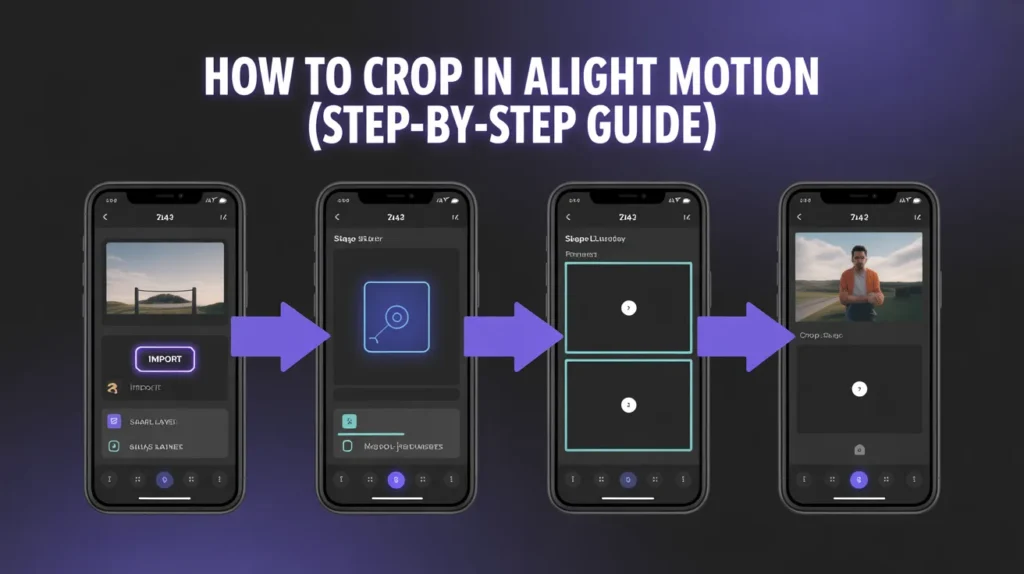
- To crop a video, first open Alight Motion and create a new project. Import your video into the timeline and prepare it for editing.
- Next, add a shape layer from the “+” menu. This shape will act as your crop mask. Resize and position the shape over the area you want to keep visible in your video.
- After that, select both the video layer and shape layer together. Use the masking or clipping option to apply the crop effect. The unwanted parts will now be hidden, leaving only your selected area visible.
How To Crop Photos in Alight Motion
Cropping images follows a similar process. First, import your photo into the project timeline. Then add a shape layer and adjust it over the area you want to keep.
Once both layers are selected, apply the mask option. The image will now be cropped according to the shape, giving you full control over composition and framing.
Aspect Ratio Comparison Table
| Platform | Recommended Ratio | Resolution |
| YouTube | 16:9 | 1920×1080 |
| TikTok | 9:16 | 1080×1920 |
| Instagram Reels | 9:16 | 1080×1920 |
| Square Posts | 1:1 | 1080×1080 |
| Cinematic Videos | 21:9 | 2560×1080 |
Features of Cropping in Alight Motion
Multiple Shape Masks
You can use more than one shape at the same time to create advanced cropping effects and creative compositions.
Feathering Effect
Feathering allows you to soften the edges of your crop, making transitions look smooth and natural instead of sharp.
Animation Support
Cropping can be animated using keyframes, allowing zoom-in, zoom-out, or moving crop effects over time.
Background Control
You can combine cropping with chroma key effects to remove or replace backgrounds for advanced editing.
Pros and Cons of Cropping in Alight Motion
Pros
Cropping helps improve video focus and removes distractions from the frame. It also allows better composition control without permanently altering the original file. It is beginner-friendly and works well for all types of content including social media videos.
Cons
Improper cropping can reduce video quality or cut important parts of the subject. Over-cropping may also affect resolution and make the video look zoomed or blurry if not adjusted properly.
List: Pro Tips for Better Cropping Results
- Always maintain correct aspect ratio
- Avoid over-cropping important subjects
- Use feathering for smooth edges
- Combine cropping with zoom effects for better visuals
- Test preview before exporting final video
Common Mistakes Beginners Make
One common mistake is cropping too tightly, which removes important parts of the subject. Another mistake is ignoring aspect ratio, which causes distortion on different platforms. Many users also forget to preview their edits, which results in poor framing after export. Always check your final composition before rendering your video.
Troubleshooting Cropping Issues
If your cropped video looks blurry or low quality, it is usually due to incorrect resolution settings. Make sure your project resolution matches your export settings inside Alight Motion.
If the crop mask is not working properly, ensure both layers are correctly selected before applying the mask option. Restarting the app can also fix minor glitches.
Conclusion
Learning how to crop in Alight Motion is one of the most important beginner skills for video editing in 2026. It helps you create clean, focused, and professional-looking content without needing advanced tools. With proper use of cropping techniques inside Alight Motion, you can significantly improve your video quality and make your edits more engaging and visually appealing.