How to Move, Group, and Manage Layers in Alight Motion (Complete Guide 2026)
If you want to create professional mobile edits, then learning how to move, group, and manage layers in Alight Motion is one of the most important skills you can develop. Every animation, transition, and visual effect in Alight Motion depends on layers. Without proper control, even simple projects can become messy and difficult to manage.
But once you understand how to move, group, and manage layers in Alight Motion, your editing becomes faster, cleaner, and far more professional. You gain full control over every element in your timeline.
What Are Layers in Alight Motion?
Layers are individual elements inside your project such as images, videos, text, shapes, and audio. These layers are stacked on top of each other, and their position decides how the final video looks.For example, a text layer placed above a video layer will appear on top in the final output. This stacking system is the foundation of how to move, group, and manage layers in Alight Motion.
Why Layer Management is Important
Proper layer control improves both speed and quality of editing. When you understand how to move, group, and manage layers in Alight Motion, you can easily handle complex projects without confusion.It helps you stay organized, reduces mistakes, and allows smoother animations. Most importantly, it gives your videos a professional look because everything is structured properly.
How to Move Layers in Alight Motion
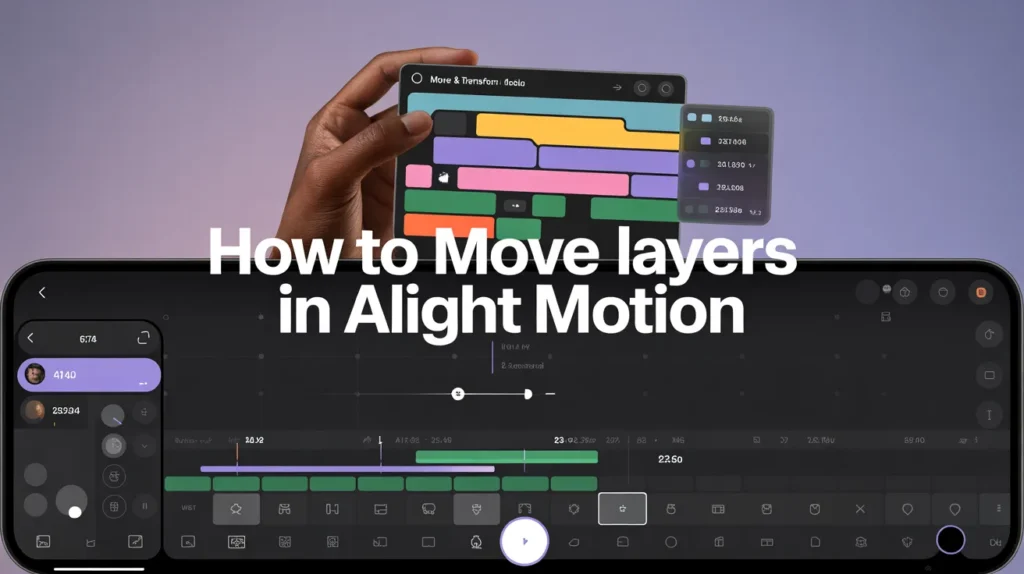
Moving layers is a basic but powerful part of how to move, group, and manage layers in Alight Motion. You can change layer order by dragging them up or down in the timeline. This controls what appears in front or behind.
You can also move elements directly on the screen by dragging them in the preview window. For precise control, the Move & Transform tool allows you to adjust position, scale, and rotation using exact values, which is useful for professional editing.
How to Group Layers in Alight Motion
Grouping is a key feature in how to move, group, and manage layers in Alight Motion because it allows multiple elements to behave as one unit.You can select multiple layers and combine them into a group. This makes it easier to move, animate, or apply effects to several elements at once. It is especially useful in complex edits like intros, transitions, and motion graphics.
How to Ungroup Layers
If you need individual control again, you can easily ungroup layers. Once ungrouped, all elements return to separate layers, allowing full editing flexibility.
How to Hide Layers
Sometimes you don’t want to delete a layer but only hide it temporarily. By tapping the eye icon, you can hide or show layers anytime. This helps keep your workspace clean while editing complex projects.
Important Layer Management List
Here are the most important layer control actions you must learn in how to move, group, and manage layers in Alight Motion:
- Moving layers up and down in timeline
- Dragging layers on preview screen
- Using Move & Transform tool for accuracy
- Grouping multiple layers together
- Ungrouping layers when needed
- Hiding and showing layers using eye icon
- Locking layers to avoid accidental edits
Layer Management Table
| Feature | Function | Benefit |
| Move Layers | Change stacking order | Controls visibility |
| Group Layers | Combine elements | Faster editing |
| Ungroup Layers | Separate elements | Full control |
| Hide Layers | Disable visibility | Cleaner workspace |
| Move & Transform | Precise positioning | Professional accuracy |
| Lock Layers | Prevent edits | Avoid mistakes |
Pros and Cons of Layer Management
Pros
Learning how to move, group, and manage layers in Alight Motion makes editing faster, more organized, and more professional. It helps in handling complex animations easily and improves overall workflow efficiency.
Cons
However, beginners may find it confusing at first. Large projects can also slow down low-end devices, and poor organization can make timelines messy if layers are not managed properly.
Common Mistakes in Layer Management
Many beginners struggle with how to move, group, and manage layers in Alight Motion because they ignore basic organization. They often forget to name layers, avoid grouping, and stack too many effects in one layer.
Another common mistake is not locking important layers, which leads to accidental changes during editing. These mistakes make projects difficult to manage.
Pro Tips for Better Layer Control
- To master how to move, group, and manage layers in Alight Motion, always name your layers properly. Group related elements together and keep background layers at the bottom.
- Use color coding to identify different types of layers quickly. Lock layers that are finished so they don’t get edited accidentally. These small habits improve workflow a lot.
Conclusion
Mastering how to move, group, and manage layers in Alight Motion is the foundation of professional video editing. Once you understand layers, you can easily create smooth animations, transitions, and motion graphics.Good layer management makes your editing faster, cleaner, and more professional. With regular practice, you can handle even complex projects without confusion.