How to Import XML File in Alight Motion? Complete Guide (2026)
Import XML files are one of the most powerful tools in modern mobile video editing, especially for users of Alight Motion. These files are widely shared in editing communities because they contain full project data such as transitions, effects, keyframes, and animations.
Instead of building an edit from scratch, creators simply import an XML file and instantly get a ready-made professional project. However, many beginners struggle because they don’t understand the correct import method or face errors like unsupported file versions.This guide explains everything in detail including Android and iOS methods, troubleshooting, benefits, limitations, and expert tips.
What is an XML File in Alight Motion?
An XML file is basically a project blueprint used by Alight Motion. It does not contain actual images or videos, but instead stores instructions for how the project should look.
It includes:
- Layer structure and order
- Keyframe animations
- Effects like blur, shake, glow
- Transitions between clips
- Color grading and adjustments
- Timing and motion settings
When you import it, Alight Motion rebuilds the entire project automatically based on these instructions.
How to Import XML File in Alight Motion (Step-by-Step Android Method)
On Android devices, XML importing is simple but must be done correctly.
- First, download the XML file from a trusted source and save it in your file manager. Then open your File Manager and locate the downloaded file. Instead of opening it directly, long-press the file and select the “Share” option. From the list of apps, choose Alight Motion.
- Once selected, the app will automatically open and import the project. After that, go to the Projects section inside the app and you will see the newly imported XML project ready to edit.
How to Import XML on iOS (iPhone/iPad Method)
https://getalightmotion.pro/On iOS devices, direct XML import is not supported. Instead, users must use alternative methods provided by creators.You can import projects using QR codes or cloud links. For QR codes, open Alight Motion, tap the “+” icon, select scan QR code, and scan the code shared by the creator. For cloud links, simply tap the link and it will automatically open inside Alight Motion where you can import the project.
XML Import Methods Comparison Table
| Method | Platform | Difficulty | Speed | Success Rate |
| File Manager Share | Android | Easy | Fast | Very High |
| Google Drive Import | Android | Easy | Medium | High |
| QR Code Import | iOS | Easy | Fast | High |
| Cloud Link Import | iOS | Very Easy | Fast | Very High |
Step-by-Step Process
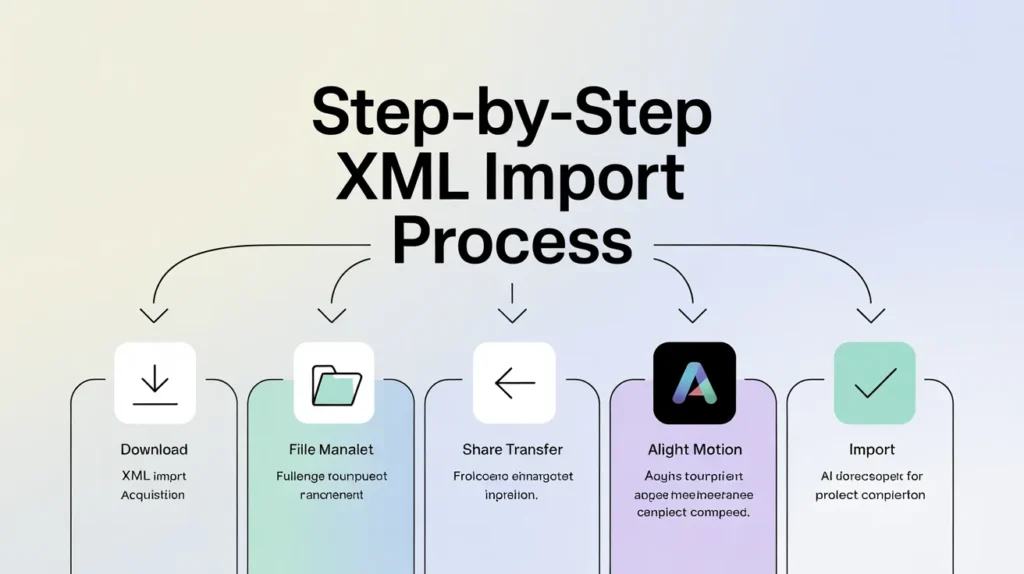
Here is the simple workflow for importing XML files correctly:
- Download XML file from trusted source
- Open File Manager on your device
- Locate the downloaded file
- Use “Share” option instead of opening
- Select Alight Motion from app list
- Wait for automatic import
- Check project in Projects tab
- Start editing your imported template
Pros and Cons of XML Files
Pros
XML files are extremely useful because they allow users to access professional editing setups instantly. They save a huge amount of time since users don’t need to manually build transitions, effects, or animations. They also help beginners learn advanced editing techniques by allowing them to study real project structures. Another benefit is that they help users follow trending editing styles quickly, especially for social media content.
Cons
Despite their advantages, XML files also have limitations. The biggest issue is version mismatch, where newer XML files may not work on older versions of Alight Motion. Another problem is that iOS users cannot directly import XML files, which limits flexibility. Some XML files may also be corrupted or poorly made, causing crashes or missing elements. Additionally, heavy XML projects can slow down low-end mobile devices.
Pros and Cons Table
| Pros | Cons |
| Saves editing time | Version compatibility issues |
| Gives pro-level results | Not supported on iOS directly |
| Helps learning advanced editing | Risk of corrupted files |
| Easy trend adaptation | Can slow low-end devices |
| Easy to reuse templates | Requires correct import method |
Common Problems and Solutions
Sometimes users face issues while importing XML files. If the file does not open, it usually means the wrong method was used, such as tapping the file directly instead of using the share option. If the app shows an “unsupported version” error, it means the app is outdated and needs an update.
If the app crashes during import, it may be due to a corrupted XML file or insufficient device storage. In such cases, re-downloading the file or clearing app cache usually fixes the problem. If media inside the template is missing, users need to manually replace those assets inside the project timeline.
Advantages of Using XML in Alight Motion
- Instant access to professional edits
- No need to build animations from scratch
- Helps learn advanced editing structure
- Supports trending social media styles
- Can be reused and modified easily
Disadvantages of Using XML in Alight Motion
- Requires correct import method knowledge
- Some files may not work on all versions
- Not directly usable on iOS devices
- Can cause lag on low-end phones
- Risk of downloading unsafe files from unknown sources
Conclusion
Importing XML files in Alight Motion is one of the most useful skills for modern video editors in 2026. Once you understand the correct import methods, you can instantly access professional-level edits, save time, and improve your overall editing quality.With proper practice, XML files can help you move from beginner to advanced editor much faster while keeping your workflow smooth and efficient.