How to Reverse Video on Alight Motion: Tips, Tricks, and Creative Uses
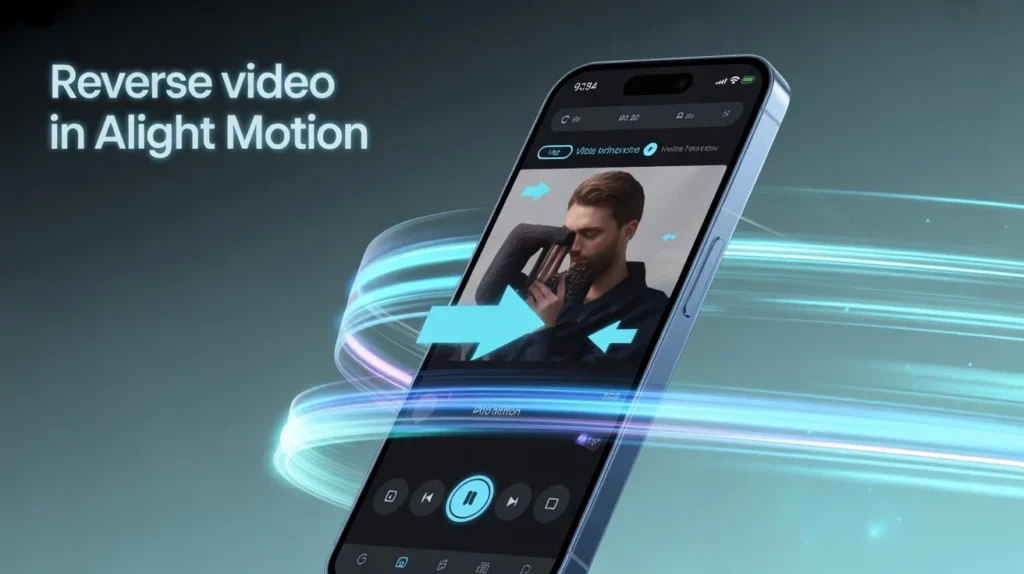
Alight Motion has become one of the most popular video editing apps for creators who want professional-looking results directly from their mobile devices. One of the standout features of Alight Motion is its ability to reverse videos, giving you a new way to create captivating content. In this article, we’ll cover how to reverse a video on Alight Motion, explore some of the best uses for reversing videos, and share additional tips and tricks to make your edits stand out.
How to Reverse a Video on Alight Motion
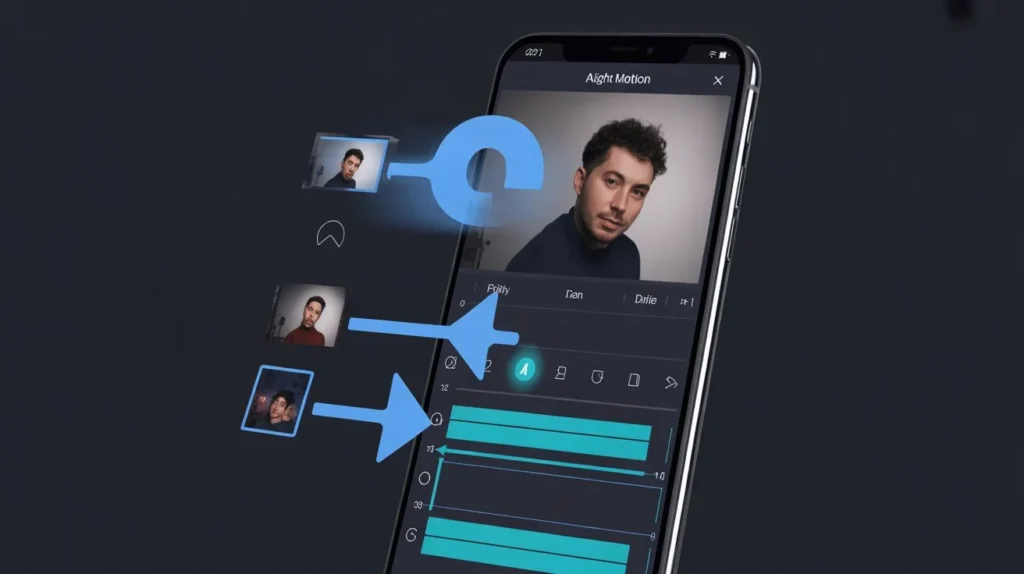
Reversing a video on Alight Motion is a straightforward process. Here’s a step-by-step guide:
- Open Alight Motion and select the project or create a new one.
- Import your video by tapping on the “+” icon and selecting the video from your gallery.
- Select the video layer in your timeline.
- Tap on “Edit” and scroll down to find the Reverse option.
- Enable the reverse effect, and your video will play backward.
- Preview the result and make any adjustments if necessary.
- Export your reversed video in your preferred resolution.
By following these steps, you can easily create a captivating backward effect that adds a unique touch to your content.
Alight Motion Reverse Video: Why It’s Popular
Using the Alight Motion reverse video feature can transform ordinary clips into exciting and eye-catching content. Reversing a video can emphasize moments that might otherwise go unnoticed, creating dramatic effects and enhancing storytelling.
Some of the Best Uses for Reversing Videos
Reversing videos is not just a fun trick—it’s a powerful creative tool. Here are some of the best ways you can use it:
- Magic Effects: Reverse a clip of water splashing, smoke, or confetti for a magical visual effect.
- Action Replays: Perfect for sports or dance videos where you want to replay an impressive move backward.
- Comedy: Reversed actions, like falling objects or jumping, can create funny moments.
- Cinematic Transitions: Reverse video sequences can add smooth and stylish transitions between scenes.
Highlighting Skills: Show skills or tricks in reverse to grab attention and make tutorials more engaging.
How to Slow Down a Video on Alight Motion
Slowing down a video can work beautifully in combination with reversing. To slow down a video on Alight Motion, follow these steps:
- Select your video layer in the timeline.
- Tap “Speed” or “Velocity” in the editing options.
- Adjust the speed slider to slow down the video to your desired pace.
- Preview and fine-tune for smooth motion.
This effect can make reversed clips feel more dramatic and cinematic.
How to Highlight a Moving Object in a Video
Sometimes you want to focus the viewer’s attention on a specific object, especially when reversing or adjusting speed. Here’s how to highlight a moving object in a video on Alight Motion:
- Select the video layer and tap “Mask” or “Shape Mask”.
- Draw a mask around the moving object.
- Animate the mask along the path of the object using keyframes.
- Apply effects like glow, color changes, or motion blur to make the object stand out.
This technique is excellent for tutorials, product videos, and storytelling, allowing viewers to follow the main subject even in complex scenes.
Additional Tips and Tricks for Using Alight Motion
To make the most of your edits, here are some additional tips and tricks for using Alight Motion:
- Layer Multiple Effects: Combine reversing, speed changes, and highlighting for professional results.
- Experiment with Easing: Smooth keyframe transitions can make your motion more natural.
- Use Motion Blur: Adds realism to moving objects or fast-moving sequences.
- Play with Color Grading: Adjust colors to match the mood or theme of your video.
Keep Clips Short: Short reversed clips are often more impactful and shareable on social media.
Final Thoughts
Reversing videos in Alight Motion opens up endless creative possibilities. Whether you’re creating cinematic sequences, tutorials, or fun social media content, mastering these features can elevate your videos to a whole new level. Combine reverse video, speed adjustments, slow-motion effects, and object highlighting to craft content that truly stands out.