Alight Motion Full Screen Ratio: Everything You Need to Know
Alight Motion has rapidly become one of the most popular video editing apps for creators who want professional-level edits on mobile devices. One key aspect that can elevate your videos is understanding and mastering the full screen ratio. This article will guide you through everything from the Alight Motion full screen resolution size to how to make full screen video in Alight Motion, ensuring your content looks polished and professional.
What is the Full Screen Resolution?
Before diving into Alight Motion’s features, it’s important to understand what is the full screen resolution. Full screen resolution refers to the dimensions of your video that occupy the entire screen without black bars or cropping. Essentially, it defines how your video fits the screen of devices like smartphones, tablets, or computers.
When creating videos, using the correct resolution ensures your content appears crisp and immersive. This becomes especially important when sharing on platforms that support high-quality videos, such as Instagram Reels, YouTube Shorts, or TikTok.
Alight Motion Full Screen Resolution Size
Alight Motion offers flexible settings for different resolutions. For 4K full screen status video min Alight Motion, the app supports high-resolution exports up to 4K (3840 x 2160 pixels). However, the actual Alight Motion full screen resolution size depends on the aspect ratio you choose when starting a project.
Common resolutions include:
- 1920 x 1080 (Full HD, 16:9 aspect ratio) – Perfect for YouTube or general widescreen videos.
- 1080 x 1920 (Vertical, 9:16 aspect ratio) – Ideal for status videos, Instagram stories, and TikTok.
- 3840 x 2160 (4K, 16:9 aspect ratio) – Best for ultra-high-definition content.
By selecting the correct resolution, your videos maintain their quality and fit the target platform perfectly.
What is Full Screen Aspect Ratio?
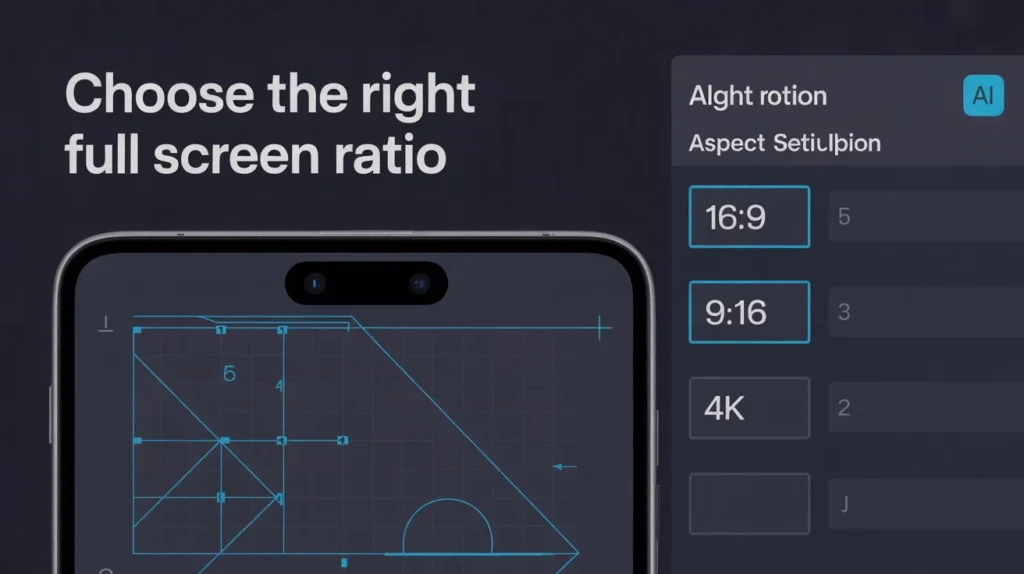
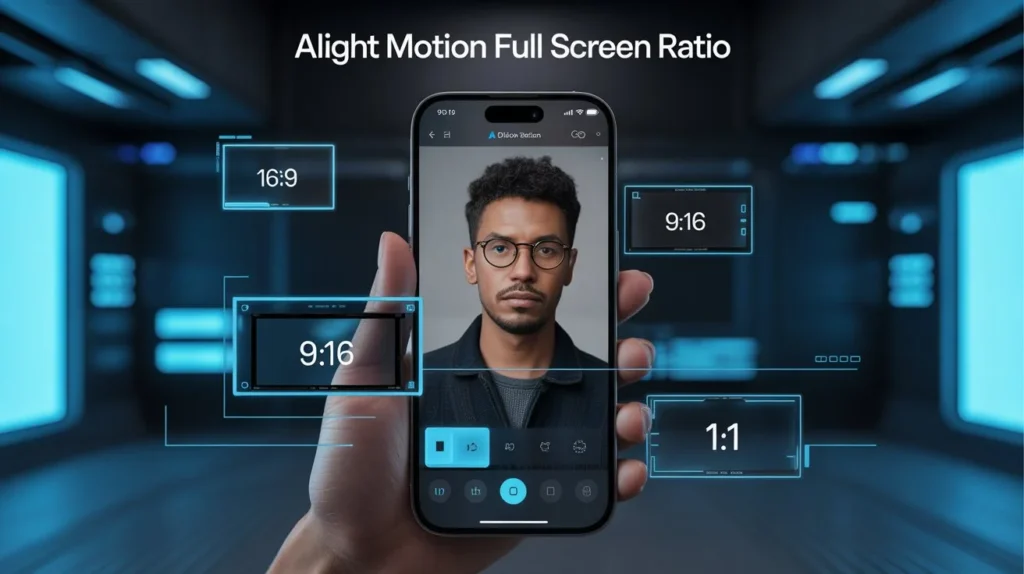
The full screen aspect ratio is the proportional relationship between a video’s width and height. Common full-screen ratios include:
- 16:9 – Standard widescreen for most video platforms.
- 9:16 – Vertical format, ideal for mobile-focused videos
- 1:1 – Square format, often used on Instagram posts.
Understanding what is full screen aspect ratio is essential to ensure your visuals appear correctly across different devices. Choosing the wrong ratio may result in black bars or cropped footage.
Importance of Full Screen Ratio
Why Full-Screen Ratio Matters in Alight Motion
Choosing the correct full screen ratio is not just a technical detail—it directly affects the viewing experience. When your video matches the full screen, it engages viewers better and maintains a professional look. Poorly scaled videos can appear distorted or leave black bars, which distract from your content.
Importance of Full Screen Ratio in Alight Motion includes:
- Maintaining video quality.
- Ensuring proper composition of visual elements.
- Optimizing for social media platforms.
Enhancing audience engagement.
Common Full-Screen Ratios
In addition to 16:9, 9:16, and 1:1, creators sometimes use unique ratios for creative purposes. Alight Motion allows customization of the full-screen ratio adjustment to meet specific project requirements. For example:
- 4:3 – Often used for older videos or retro effects.
- 21:9 – Cinematic ratio for dramatic widescreen effects.
By understanding these ratios, you can decide which full-screen ratio adjustment in Alight Motion best fits your project.
How to Adjust Full Screen Ratio in Alight Motion
Adjusting the full screen ratio in Alight Motion is simple and crucial for achieving professional results. Here’s a step-by-step guide:
- Open Alight Motion and start a new project.
- Tap on Project Settings.
- Select Resolution & Aspect Ratio.
- Choose your preferred full screen resolution size and aspect ratio.
- Preview your video to ensure no elements are cropped or distorted.
If you encounter issues, you may wonder how can you fix the full screen ratio on Alight Motion. The solution is to re-adjust your project settings and scale your layers to fit the selected ratio.
5 Uses of Full-Screen Ratio
Full-screen ratios aren’t just technical—they unlock creative potential. Here are 5 uses of full-screen ratio:
- Vertical Storytelling – Use 9:16 for immersive mobile content.
- Cinematic Widescreen – Use 21:9 for dramatic, cinematic storytelling.
- Social Media Optimization – Adjust to 1:1 for Instagram or 16:9 for YouTube.
- Highlighting Key Subjects – Proper scaling keeps your main subject centered.
Creative Effects – Combine different ratios for split-screen, overlays, and transitions.
Creative Uses of Full-Screen Ratio
Creators can take full advantage of Alight Motion’s flexibility:
- Use 4K full screen status video min Alight Motion for high-definition story videos.
- Apply motion graphics across a 16:9 ratio for cinematic effect.
Mix vertical and horizontal formats in a single project for dynamic transitions.
Best Practices for Full Screen Ratio
To maximize the impact of your videos in Alight Motion, follow these best practices:
- Always match your full screen resolution size with the target platform.
- Preview your video before exporting to check for cropping or black bars.
- Use guides and grids to keep elements aligned when adjusting the full-screen ratio.
- Avoid stretching footage; instead, scale layers proportionally
How to Make Full Screen Video in Alight Motion
Creating a full-screen video in Alight Motion involves:
- Setting the correct full screen resolution size at the start.
- Adjusting each layer to fit within the chosen full-screen ratio.
- Applying effects and transitions without altering the aspect ratio.
- Exporting in high resolution for optimal viewing.
By following these steps, you ensure your videos look professional and immersive on all devices.
Additional Information on Full Screen Ratio in Alight Motion
Alight Motion also allows for fine-tuning full screen ratio adjustment. You can use features like:
- Layer scaling to maintain the visual balance.
- Cropping and masking to focus on key subjects.
- Animated resizing to create dynamic effects.
Understanding these features helps you master the app and produce high-quality content.
Final Thoughts
Mastering the full screen ratio in Alight Motion is essential for any creator aiming to produce high-quality, professional videos. Whether you are creating 4K full screen status video min Alight Motion or simple social media clips, understanding resolution, aspect ratio, and full-screen adjustment will elevate your content and keep your audience engaged.